Microsoft Dynamics NAV has served countless small and mid-sized firms across the world for many years. It powered finance, supply chains, stock, sales, service, and project operations for organisations that wanted a reliable ERP system.
NAV, formerly known as Navision, was known for its flexibility and wide marketplace of extensions. It helped firms shape daily activity, strengthen planning, and support digital growth at their own pace.
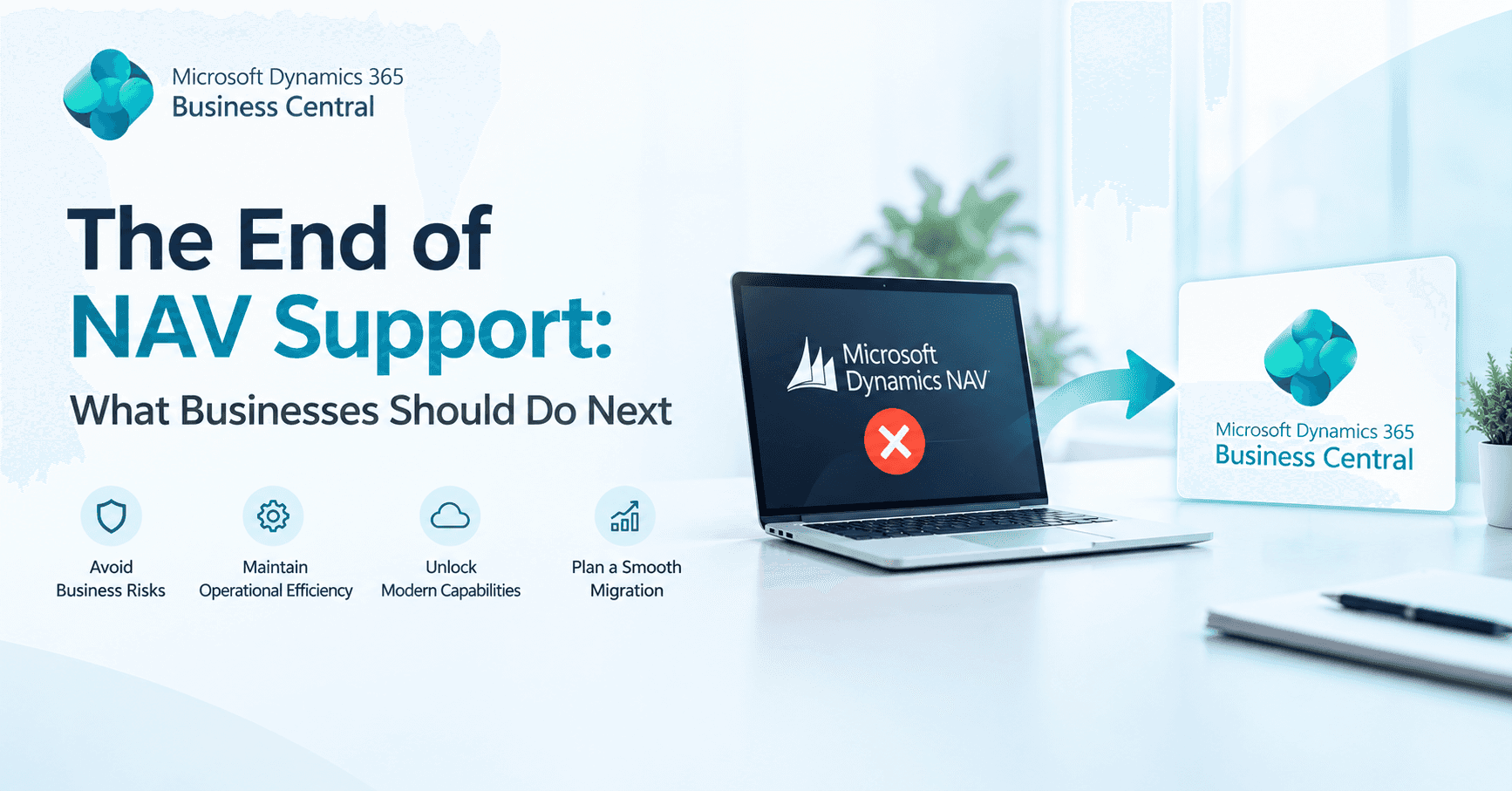
But time goes on. Microsoft has moved its investment and focus from NAV to Dynamics 365 Business Central. This new solution is based in the cloud and gets regular updates, has better security, and works better with other Microsoft products.
As part of this change, Microsoft has stopped supporting older versions of NAV. NAV 2018 will still be supported until January 2028.
Businesses that use Dynamics NAV need to know what "end of support" means, how it will affect their daily operations, and what they need to do next.
This guide makes everything clear so that business leaders, finance teams, and operations managers can make decisions. The aim is to make it easy to get from NAV to a future-ready ERP environment.
What Does the End of Dynamics NAV Support Mean?
When Microsoft ends support for a product, the system still runs, yet it stops receiving several types of assistance.
In the case of Dynamics NAV and other products from Microsoft, each version has its own timeline, but once mainstream support ends, the product stops receiving new features.
And when extended support ends, the product stops receiving security updates as well.
NAV Support Timeline Summary
|
Version |
Start Date |
Mainstream Support End Date |
Extended Support End Date |
|
NAV 2009 |
12 Feb 2009 |
13 Jan 2015 |
14 Jan 2020 |
|
NAV 2009 R2 |
15 Mar 2011 |
13 Jan 2015 |
14 Jan 2020 |
|
NAV 2013 |
19 Dec 2012 |
9 Jan 2018 |
10 Jan 2023 |
|
NAV 2013 R2 |
30 Dec 2013 |
9 Jan 2018 |
10 Jan 2023 |
|
NAV 2015 |
17 Dec 2014 |
14 Jan 2020 |
14 Jan 2025 |
|
NAV 2016 |
3 Jan 2016 |
13 Apr 2021 |
14 Apr 2026 |
|
NAV 2017 |
27 Oct 2016 |
11 Jan 2022 |
11 Jan 2027 |
|
NAV 2018 |
1 Dec 2017 |
10 Jan 2023 |
11 Jan 2028 |
After these extended timelines end, firms must run NAV without new fixes from Microsoft. This creates risk, especially in areas like security, compliance, and integrations.
Why Does the End of Dynamics NAV Support Matter to Organisations?
Firms that remain on Dynamics NAV beyond extended support face several challenges. The system still operates, yet conditions around it shift over time.
Business needs change, regulations change, technology changes, and customer habits change. Without a supported ERP, firms gradually feel pressure across many areas.
Here are key factors that make this situation important.
1. Security Becomes a Growing Concern
When extended support ends, Microsoft stops releasing security updates. Firms then run an ERP system without current protection against new threats. Cyber risks rise each year, and an unsupported ERP becomes harder to shield.
2. Integrations Become Harder to Maintain
Modern businesses rely on a variety of systems. Ecommerce platforms, payroll apps, CRM software, banking tools, reporting dashboards, and third-party extensions must connect smoothly with the ERP. As Dynamics NAV ages, integration partners may drop support, causing errors, sync issues, or complete breaks.
3. Compliance Requirements Shift Over Time
VAT rules, audit standards, and digital record-keeping requirements shift from time to time. A supported system helps firms stay aligned. An unsupported NAV system offers limited help in these areas.
4. Rising Cost of Maintenance
Partners and developers find it harder to support older NAV versions. Skilled NAV consultants still exist, yet keeping customisations alive becomes more expensive. Hardware costs, server upkeep, and manual patching also strain budgets.
5. Limited Innovation
NAV receives no new features. While Business Central gains fresh functions, automation tools, richer reporting, and AI-driven assistance, NAV stays static. Over time, this slows down teams and limits competitive strength.
What Businesses Should Do Next?
Firms running Dynamics NAV must choose a path that supports their stability and long-term plans. Several options exist, and each depends on the version used, customisations, integrations, team readiness, and growth goals.
Below are the key steps that every organisation should explore:
1. Review Your Current NAV Environment
Before planning any shift, firms should assess their current NAV system. This includes:
- NAV version
- Level of custom code
- Number of integrations
- Current hardware or hosting setup
- Add-ons or ISVs
- Database size
- Number of users
- Team readiness for change
This assessment helps leaders see the true condition of the system and the effort needed for any future step.
2. Understand Your Upgrade and Migration Options
Firms running Dynamics NAV have two practical options when support winds down. They can upgrade NAV to Business Central on-premises or move to Business Central cloud. Each path suits different situations.
Option A: Move To Business Central On-Premises
Some firms want to keep infrastructure under their own control. Dynamics 365 Business Central on-premises is the direct successor to Dynamics NAV. It offers a modern interface, better performance, and the full Business Central feature set.
This option suits firms that require local hosting due to strict internal rules or specific operational conditions.
Option B: Move To Business Central Cloud
This is the path most firms select. Business Central cloud runs fully on Microsoft servers with built-in security, regular updates, rich integration with Microsoft 365, Power BI, Teams, Copilot features, and a wide app marketplace.
Cloud-based deployment suits firms that want to reduce hardware cost, simplify upkeep, and gain regular improvements without heavy technical work.
3. Check Customisations and Identify What to Keep
Older Dynamics NAV systems often carry years of custom codes. Some customisations were useful in the past, yet they may not serve current needs. Firms should review each custom feature and ask:
- Does it support daily operations
- Can the standard Business Central function replace it
- Is there an extension available on AppSource
- Is the feature still relevant
Removing unnecessary customisations helps reduce project complexity and future maintenance.
4. Assess Your Data and Plan Cleanup
Old Dynamics NAV systems often hold outdated entries, unused customers, inactive items, duplicate suppliers, and old transactions. Cleaning data before moving to Dynamics 365 Business Central helps improve reporting, reduces errors, and supports smoother day-to-day activity.
Key areas to review include:
- Chart of accounts
- Customer and supplier records
- Item master and variants
- Pricing structures
- Posting groups
- Historical transactions
- Dimension values
Clean data helps teams work with clarity once the new system goes live.
5. Engage With a Partner for a NAV To Business Central Assessment
A specialist Business Central implementation partner can run a full assessment and provide a clear plan. This often includes:
- System analysis
- Code review
- Data review
- User interviews
- Infrastructure checks
- Integration mapping
- A clear project timeline
- A budget plan
This step brings structure and helps business leaders make informed decisions.
6. Explore the Benefits of Moving to Business Central
A migration from Dynamics NAV to Dynamics Business Central carries several advantages across daily operations.
A Modern Interface
Dynamics 365 Business Central has a clean and intuitive layout that helps users complete tasks faster. Navigation is simpler, searching is easier, and screens adjust to user roles.
Built-In Automation
Business Central has workflows, data validation rules, approvals, and automated processes that cut down on the need for people to do things manually.
Tight Integration with Microsoft 365
Excel, Outlook, Teams, OneDrive, and Power BI all work well with Microsoft Business Central. Outlook lets users send quotes, Excel lets them export data, and Teams lets them share dashboards.
AI And Copilot Features
Microsoft Copilot powers smart features in D365 Business Central that assist users in quickly creating content, summarising data, finding patterns, or preparing documents.
Better Performance and Scalability
As business volume grows, the system can support more stock, more sales, more transactions, and more users without heavy infrastructure costs.
Regular Feature Improvements
Microsoft updates Business Central twice each year. These updates bring new features, performance improvements, and stronger security without heavy work from the IT team.
7. Build A Clear Migration Plan
Once the firm decides to proceed, it should develop a structured migration plan.
A typical plan includes:
- Project discovery
- Data preparation
- Environment setup
- Extension analysis
- Integration mapping
- User training
- Testing
- Cutover planning
- Post-launch support
Each step shapes the final outcome. A careful plan helps teams handle the shift with confidence.
8. Train Users for a Smooth Transition
User training helps teams make the best use of the new system. Dynamics 365 Business Central carries many functions that may feel new compared to Dynamics NAV. Training should be simple, practical, and aligned with each role.
Examples include:
- Finance training
- Inventory training
- Sales training
- Purchasing training
- Warehouse training
- Reporting and insights training
With proper training, teams gain comfort and speed in daily tasks.
9. Test The System Carefully Before Go Live
Testing helps teams check each step of their operations. Firms should test:
- Sales cycles
- Purchase cycles
- VAT setups
- Stock postings
- Bank entries
- Approvals
- Financial reports
- Integrations
Testing builds confidence and helps catch issues before the system goes live.
10. Plan For Post-Launch Support
Once the system goes live, teams often need guidance during the first few weeks. Questions arise around posting, approval setups, item configurations, or workflows. A support plan helps teams settle into the new platform.
Closing Thoughts
The end of Dynamics NAV support signals an important point in the journey for every organisation still running this system. While Dynamics NAV served firms well for many years, the world around business software keeps shifting. Dynamics 365 Business Central has taken its place as the future-ready ERP system built for cloud, integration, reporting, automation, security, and long-term flexibility.
Companies that know what they want to do next have an edge. The move from NAV to Business Central can help your business grow, run more smoothly, and see things more clearly across the organisation if you have the right implementation partner, clean data, clear goals, and a structured migration plan.