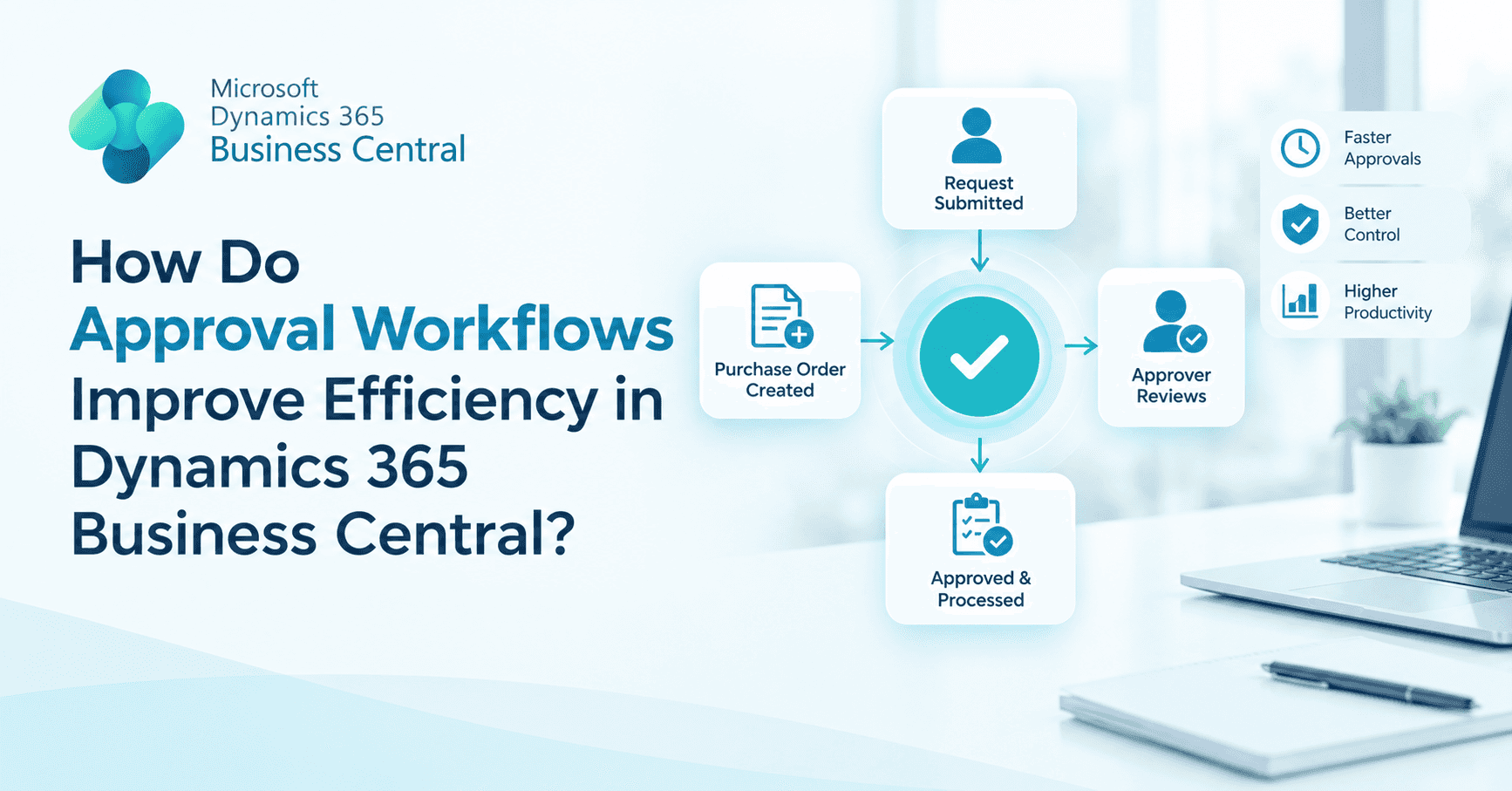
Approval workflows in Dynamics 365 Business Central send records such as purchase documents to the right approver, apply the approval limits stored in the system, and log every decision. That cuts the time finance, and operations teams spend chasing signatures. How much it cuts depends on how closely the workflow matches company policy, how accurately approvers are set up, and whether people work inside the process.
Plenty of companies still approve purchases over email and spreadsheets. A request sits because the approver is out, and nobody can see what’s pending. The authorization limits live in one person’s memory instead of the system.
What are approval workflows in Dynamics 365 Business Central?
An approval workflow is a set of configured steps that sends a Business Central record, such as a purchase order or customer card, to a designated approver before it can move forward. According to Microsoft’s workflow documentation, each step pairs a workflow event with a response, and conditions narrow when it fires. For example, the event is a purchase document being sent for approval, and the condition is an amount threshold. The response is an approval request with a notification.
Unlike an email approval, the request and the decision attach to the record itself. Approvers act from the Requests to Approve page or from a link in a notification. Requesters can check on their requests in Approval Request Entries.
Take a purchase invoice. When the buyer sends it for approval, its status changes from Open to Pending Approval. It stays locked until every required approver signs off. Then it becomes Released. The workflow rules should mirror the authorization limits your company already has on paper.
How do approval workflows improve business efficiency?
They remove the manual steps between asking for an approval and getting a decision. Each gain below depends on setup.
Cycles get shorter because the workflow can set a due date and, if you’ve configured substitutes, delegate a request automatically after one, two, or five days. Approvers can process several requests at once, and the Send Overdue Approval Notifications action reminds them about late items. Substitutes also keep requests moving when an approver is away.
Authorization gets more consistent because Approval User Setup stores sales and purchase approval limits, and the workflow applies them when its response uses limit-based routing. Those limits must match policy, since the system will enforce whatever is entered.
Visibility improves too. Approval entries and record statuses show what’s pending, so finance, purchasing, and operations look at the same information. The entries record each request and its status, which helps with internal review. They don’t guarantee compliance on their own.
Which business processes can use approval workflows in Business Central?
Microsoft lists core approval workflows for purchase documents, sales documents, payment journals, customer cards, and item cards. The workflow engine also supports events such as vendor edits and price changes. Support isn’t identical across record types, as the table shows.
|
Process |
What triggers approval |
Who may approve |
Limitation |
|
Purchase orders and invoices |
A user sends the document for approval |
The requester’s approver, within purchase limits |
The request amount limit applies only to purchase quotes using the Approver Chain option |
|
Sales documents |
A user sends the document for approval |
The requester’s approver, within sales limits |
Limits use local currency amounts |
|
Payment journals |
A user requests approval |
An approver set in Approval User Setup |
Confirm templates in your version |
|
Customer, item, and vendor changes |
A new record or a field change, such as a vendor name |
An approver or a workflow user group |
Field-change workflows can revert the value until approved |
|
Expense approvals |
Not part of the core templates listed |
Depends on design |
Requires Power Automate, an extension, or customization |
How do you set up approval workflows in Dynamics 365 Business Central?
Setup follows a fixed order. Users and notifications come first, then you create and enable the workflow.
- Define the process: Write down who approves what, at which amounts, and what happens on rejection.
- Set up approval users: On the Approval User Setup page, assign approvers, sales and purchase limits, substitutes, and one approval administrator.
- Configure routing: Choose an approver type (Approver, Workflow User Group, or Salesperson/Purchaser) and an approver limit type. Workflow user groups can require several approvers in sequence.
- Start from a template: Use New Workflow from Template, then adjust it.
- Define events, conditions, and responses: Business Central offers a set of system-defined options, along with due date and delegation settings.
- Configure notifications: Business Central supports email and internal notes, sent through the job queue. Email needs sender and receiver setup.
- Test: Run approval, rejection, delegation, and cancellation scenarios before you turn on the Enabled toggle.
- Train and monitor: Show users where to find requests, then review overdue items after launch.
What is the difference between Business Central approval workflows and Power Automate?
Native workflows run inside Business Central and cover standard approval scenarios. Power Automate connects approvals to other apps and services. You don’t need it for standard approvals.
Microsoft describes Power Automate approval flows as an alternative to the built-in feature, and flows created that way appear in the Business Central workflow list. When a scenario needs an event or response the standard version doesn’t support, Microsoft points to Power Automate, an app from Marketplace, or partner customization of the application code.
Before choosing, check licensing, user permissions, data security, and who will maintain the flow. Administrators can restrict Power Automate access, and its availability is described for Business Central online.
What common approval workflow problems should businesses avoid?
Most problems come from a setup that doesn’t match how the business actually works.
- Run the Approval User Setup Test action on every user before go-live, because incomplete approver setup is easy to miss.
- Compare configured limits with the written authorization policy each time the policy changes.
- Keep requester and approver as separate people. Microsoft notes that when they’re the same person, the request is approved automatically.
- Add approval stages only where risk justifies them, since each extra approver adds waiting time.
- Assign substitutes and consider automatic delegation so a missing approver doesn’t stall requests.
- Decide in advance how rejections, cancellations, and resubmissions are handled.
- Show users where requests appear and what each status means.
When should a business work with a Business Central implementation partner?
A partner becomes useful when your approval requirements go beyond what a template and a few approval users can express. Common triggers are complex approval hierarchies, multiple departments, locations, or legal entities, integration with external systems, and custom requirements that need an extension or code changes. Partners also help with troubleshooting, tuning existing workflows, and revising them when authorization policies or internal controls change.
Business Central Partners can help assess your approval requirements, configure workflows, and line Business Central up with how your organization authorizes spending.
Frequently asked questions
Can approval workflows be automated in Business Central?
Partly. Once enabled, a workflow creates requests, sends notifications, and updates statuses on its own. A person still approves or rejects each request, and each process has to be configured.
Can Business Central route approvals based on transaction amounts?
Yes. Approval User Setup stores sales and purchase amount limits, and the workflow’s approver limit type decides who receives the request. Options include Approver Chain and First Qualified Approver. Limits are set in local currency.
Can multiple people approve a transaction?
Yes. An approver hierarchy or a workflow user group with sequence numbers can require several approvers. The record stays Pending Approval until all requested approvers approve it.
Can users track pending approvals?
Yes. Requesters use Approval Request Entries, and approvers use Requests to Approve. The Overdue Approval Requests page supports follow-up.
Can Business Central send approval notifications?
Yes. Standard notifications go out by email or as internal notes through the job queue, and email must be set up for sender and receiver.
Can approval workflows be customized?
Within limits. You can copy templates and choose from system-defined events, conditions, and responses. New events or responses require Power Automate, a Marketplace app, or custom development.
Review your approval process
If your team still tracks approvals by hand, or your workflows no longer match your authorization policies, talk to Business Central Partners about reviewing your approval process and configuring workflows that fit how your organization operates.