Most Business Central data problems start with a small habit. Someone creates a vendor after skipping the check for an existing one, or updates a bank account on one record and forgets the other.
By the time it surfaces, an AP clerk is asking why a payment went to the wrong account, or a warehouse count disagrees with the shelf. Fixing it takes longer than expected, because the bad record has already been used across many transactions.
That is why master data management in Dynamics 365 Business Central deserves its own owner and its own routine: decide who maintains each record, what a correct one looks like, and how changes reach every company that uses it. This guide covers how master data management features in Business Central work, how to set up synchronization across companies, and what keeps the data clean after go-live.
What Is Master Data Management in Business Central?
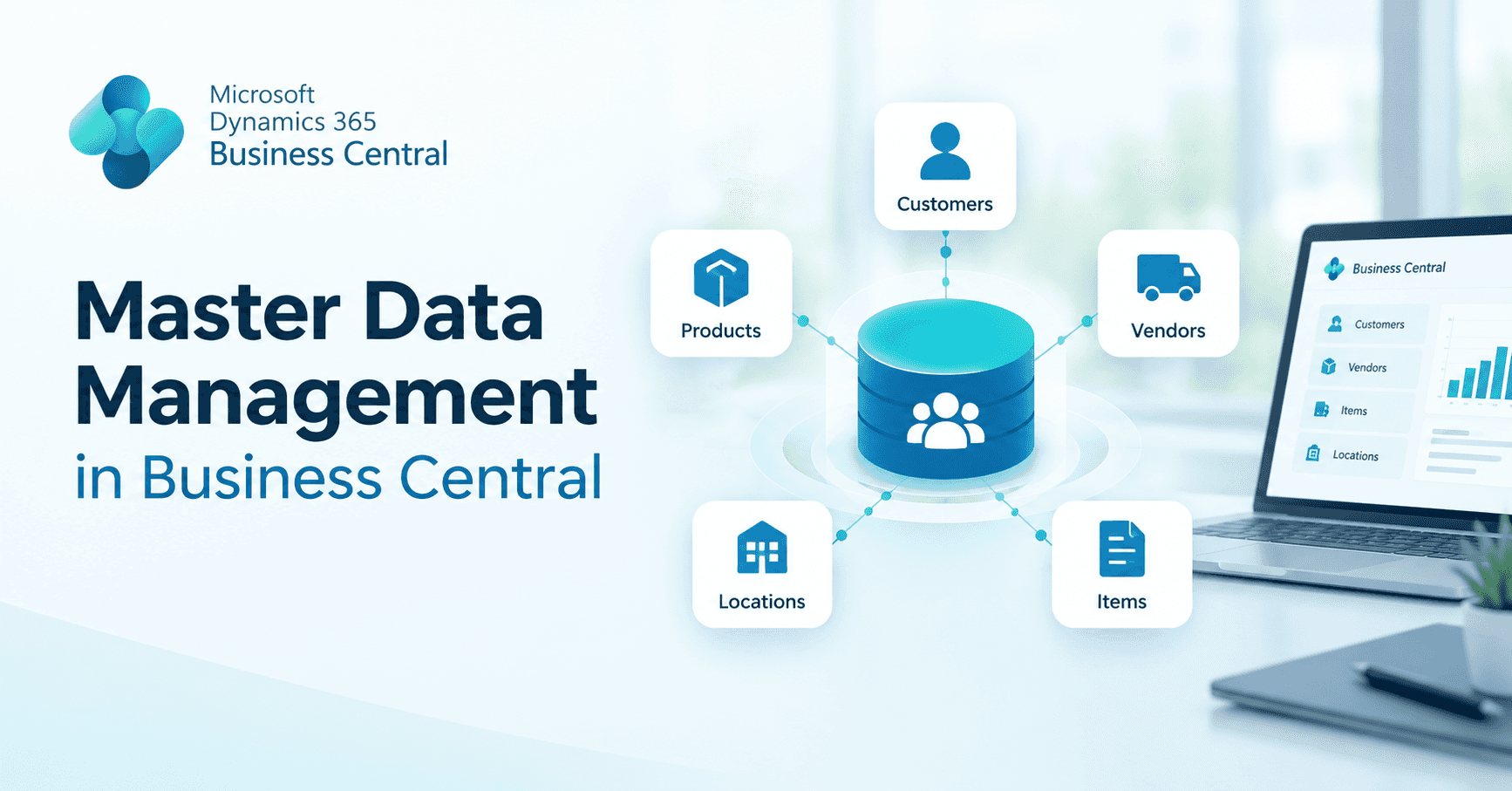
Master data is the core information your business runs on: customers, vendors, items, contacts, and the chart of accounts. Managing it means keeping those records accurate, consistent, and standardized.
Almost every transaction in Business Central touches one of them. Sales invoices pull from the customer card. Purchase orders and payments pull from the vendor. Items drive inventory movements and valuation, and G/L accounts and dimensions let finance slice transactions into reports.
Good business central master data management has three parts.
The first is functionality: templates, record merging, dimensions, permissions, approval workflows, and master data synchronization.
The second is governance, where someone has decided who may create, change, review, and approve each kind of record.
The third is maintenance, the routine work of hunting for duplicates, blank fields, mismatched values, and sync errors.
Business Central also includes a dedicated Master Data Management Setup feature. It copies selected master data from a source company into subsidiary companies in the same environment, and you choose which records and fields travel.
How much of this you need depends on how many companies you run, what else connects to Business Central, and how tightly you want to control changes.
What Types of Master Data Can You Manage in Business Central?
Each record type feeds different processes. Before applying any controls, list what you have and decide who owns each one.
|
Record type |
Information maintained |
Business impact |
|
Customers |
Contact details, payment terms, posting groups, default dimensions |
Invoicing, receivables, customer reporting |
|
Vendors |
Supplier details, payment terms, posting groups, purchasing information |
Procurement, accounts payable, payments |
|
Items |
Item numbers, descriptions, units of measure, posting groups |
Purchasing, inventory tracking, stock valuation |
|
Chart of accounts |
G/L account numbers, names, categories |
Financial classification and reporting |
|
Contacts |
People and organizations tied to business relationships |
Communication and relationship management |
Vendors show the problem well. When one supplier sits under two vendor numbers, its purchase history and open balances split between them, and someone in finance has to dig through transactions to find the live record.
Business Central offers tools for this. You can merge eligible customer, vendor, and contact records, and the contact duplicate search flags probable duplicate contacts.
Posting groups link customers, vendors, and items to general ledger accounts. Dimensions let you tag transactions by department, project, location, or whatever your reporting requires. Together they keep operational records tied to the accounting behind them.
Why Does Master Data Management Matter for Business Central Users?
Watch what people do all day and the case makes itself. A missing field or an off-pattern record forces a check at some point in the transaction. One check costs seconds. Hundreds or thousands of them add up to real hours.
Financial Reporting and Analysis
To compare departments or periods, finance needs consistent account assignments, dimensions, and customer records.
Say two people code the same department differently. Management reports then show that department’s spending in two places. Standard coding keeps it in one, whether you report from Business Central or Power BI.
Purchasing and Accounts Payable
Vendor data decides which payment terms, posting groups, and bank details get used. When it is right, payments go out right.
You can also place a review step in front of sensitive changes. Vendor bank account edits are the obvious candidate. With a permission set and an approval workflow, a second person checks the change before it reaches a payment run.
Inventory Management
Units of measure control how you buy, store, and count an item.
A distributor might buy a product by the case and sell it one at a time. Business Central handles that with a base unit of measure and alternate units that carry defined conversion quantities. A wrong conversion lets quantities drift between purchasing and inventory, quietly, until the next count.
Integration With Other Business Systems
Plenty of businesses connect Business Central to a CRM, Microsoft Dataverse, an e-commerce platform, or other operational tools.
Matching a customer or vendor across those systems gets much easier when each one follows the same record standards. Sync rules and integration monitoring then govern how updates move.
Multi-Company Operations
Every subsidiary or legal entity you add makes consistency harder. Different teams create near-identical records with their own naming habits and field values.
A defined approach settles three questions early: what gets shared, which company owns it, and how changes reach everyone else.
How Do You Set Up Master Data Management in Business Central?
A workable master data management setup business central project covers data cleanup, configuration, ownership, and recurring maintenance. Aim for a process your own staff can keep running after go-live.
1. Audit Existing Data
Start with customers, vendors, items, and contacts. Look for duplicates, empty fields, outdated details, and naming that follows several different patterns.
For large record sets, export the supported lists to Excel, where recurring problems stand out faster. Go after the records that matter most to purchasing, payments, inventory, and reporting. Assign each category of problem to a named person so the audit ends in corrections and leaves behind more than a spreadsheet.
2. Define Data Standards
Decide on naming conventions, required fields, unique identifiers, number series, units of measure, and dimension codes.
For vendors, that could mean one agreed naming pattern plus a list of fields that must be filled in before a record goes live. Write it down so people have a reference when they create or edit records.
Take extra care with global dimensions. Changing them later can mean touching posted entries and related records.
3. Assign Data Ownership
Each major data category needs one owner.
Accounts payable might own vendors, sales operations the customer records, and the inventory team the items. IT looks after configuration and integrations, and finance sets the accounting rules.
Document who can create records, who approves sensitive changes, who reviews exceptions, and who fixes quality issues. Business Central’s permission sets and approval workflows can enforce much of that.
4. Configure Templates, Dimensions, and Permissions
Customer, vendor, and item templates prefill values when someone creates a record. Default dimensions and dimension combinations keep classification consistent.
Build these around how your company reports and operates, using your real processes as the starting point. Give out permission sets by job responsibility, and add approval workflows where a change deserves a second set of eyes. Then run realistic scenarios through the setup, since rules that look fine in a workshop sometimes break on a normal Tuesday.
5. Configure Master Data Management Setup
If you run multiple companies in one Business Central environment, the Master Data Management Setup feature synchronizes selected master data from a source company to subsidiaries.
Here is the usual sequence:
- In the subsidiary company, search for Master Data Management Setup with Tell Me or Alt+Q.
- Pick the source company.
- Turn on synchronization and confirm the configuration.
- Open Synchronization Tables and choose the tables and fields the subsidiary needs.
- Set table filters and matching criteria for the records involved.
- Run Start Initial Synchronization and choose the right synchronization option.
- Check the results, then set up a routine for watching job queue activity.
The model is pull-based: the subsidiary retrieves selected data from the source company. All participating companies share one environment.
Let your own data structure drive field selection, matching criteria, and record coupling. Read the results of the first sync closely, because records that matched poorly are much easier to sort out now than after the process runs on a schedule.
6. Plan Data Imports and Migration
Moving data across is one part of the job. You also validate the source, map the fields correctly, and confirm the imported records support the processes they serve.
Configuration packages suit initial company setup, and XMLports are worth evaluating for importing and exporting in production. The right choice depends on data structure, volume, validation needs, and the target environment. Test in a suitable environment first, and write down how you will verify the migrated records.
7. Monitor and Maintain Data Quality
After configuration, put a review schedule in place.
Watch for duplicates, incomplete records, mismatched codes, and sync exceptions. A few numbers worth tracking: open data issues, empty mandatory fields, and failed sync jobs.
Give every recurring check an owner and write down how corrections get made. That makes data quality a normal part of operations and keeps it from becoming a cleanup project that only gets attention after something breaks.
Business Central Master Data Management Tools
Business Central has several tools, each covering a different piece of the job. How well they work depends on configuration and on how consistently people use them.
|
Tool |
Primary use |
Implementation consideration |
|
Customer, vendor, and item templates |
Prefill values on new records |
Review historical records separately |
|
Default dimensions and dimension combinations |
Apply reporting dimensions and control allowed combinations |
Test dimension priorities and posting requirements |
|
Item units of measure |
Define base and alternate units with conversion quantities |
Check conversion factors against how you actually operate |
|
Record merging |
Merge eligible duplicate customers, vendors, and contacts |
Review conflicting values first, since a merge is permanent |
|
Contact duplicate search |
Flag potential duplicate contacts |
Set up separate checks for other record types |
|
Configuration packages |
Transfer suitable setup data |
Match package structures and permissions to the environment |
|
XMLports |
Import and export data |
Validate field mappings and transformations |
|
Edit in Excel |
Review and update supported list data in bulk |
Confirm the required integration and available actions |
|
Permission sets |
Control access to records and functions |
Align permissions with job responsibilities |
|
Approval workflows |
Route selected changes for approval |
May need extra configuration depending on your requirements |
|
Master Data Management Setup |
Synchronize selected master data between companies |
Configure source data, tables, fields, matching criteria, and job queue processing |
Templates standardize new records. Permissions control who can change what. Synchronization keeps selected data aligned across companies. Ownership and a review routine tie them into daily work, because the tools leave that part to you.
Does Business Central Support Master Data Management Across Multiple Companies?
Yes, and there are several ways to do it. The right one depends on whether you need to sync master records, pass transactions between companies, or integrate with other applications.
Master Data Management Setup
This dedicated feature synchronizes selected master data from a source company to subsidiaries in the same environment.
Administrators choose the tables, fields, filters, and matching criteria that decide what moves. Subsidiaries pull the data, and scheduled job queue entries handle later updates to coupled records.
Microsoft Dataverse Synchronization
Business Central can sync supported customer, vendor, and contact data with Microsoft Dataverse, which gives organizations on other Dynamics 365 applications a way to connect.
Sync settings, record coupling, and scheduled jobs all affect how data moves, so line them up with who owns the data and what the integration needs to do.
Intercompany Functionality
Intercompany handles transactions between participating companies: sales, purchases, and general journal entries.
Intercompany account and dimension mappings keep those transactions consistent. It complements master data management. One keeps records aligned, and the other moves the financial activity.
External Integrations and Centralized Governance
Bigger requirements may call for Business Central APIs, extensions, or an external MDM platform. These can add validation rules, wider integrations, and governance across several systems at once.
The right design depends on your company structure, the data in play, and how much automation you want.
What Are the Common Master Data Management Challenges in Business Central?
Most problems begin when data changes across departments, systems, or companies while each team follows its own process.
|
Challenge |
Recommended approach |
When a partner can help |
|
Duplicate or inconsistent records |
Review duplicates and set naming standards |
Large-scale cleanup and advanced matching |
|
Poor-quality legacy data |
Audit source data and validate migration results |
Complex migrations involving multiple systems |
|
Ownership gaps |
Assign owners and define review responsibilities |
Governance across departments or subsidiaries |
|
Mixed item and customer conventions |
Standardize templates, number series, and units of measure |
Extra validation through extensions |
|
Disconnected business systems |
Configure supported integrations and monitor synchronization |
CRM, e-commerce, warehouse, and ERP integration |
|
Differences across companies |
Configure master data synchronization and intercompany mappings |
Centralized governance across legal entities |
|
Sensitive data changes |
Apply permissions and approval workflows |
Specialized approval requirements and added controls |
Duplicate vendors illustrate it. Before you merge two of them, someone should read through the transaction history, because the merge is permanent. A migration out of several legacy systems may need field mapping, transformation rules, and its own validation pass.
Work through these with a defined process and you end up with cleaner data and a routine you can repeat.
When Should You Work With a Business Central Implementation Partner?
That depends on how complex your business is and what the implementation involves.
A company with a single environment and fairly simple processes can often manage with standard functionality, trained administrators, and clear procedures. Several subsidiaries, a messy migration, or a long list of integrations are where outside specialists tend to earn their fee.
A Business Central implementation partner can take on:
- Data migration: reviewing legacy data, mapping fields, and planning validation.
- Multi-company synchronization: setting up source and subsidiary relationships and deciding which records get shared.
- System integration: connecting Business Central to CRM, e-commerce, warehouse, and other applications.
- Data quality: building repeatable cleansing and validation processes.
- Governance and customization: defining ownership, access controls, approval processes, and extra validation rules.
A useful engagement starts with an assessment of your current data, processes, and goals. After that, the team can sequence configuration, migration, testing, and ongoing maintenance.
Business Central Partners works with companies to assess their Dynamics 365 Business Central requirements and find suitable implementation and optimization approaches. Contact the team to talk through your data management priorities and the configuration that fits how you operate.
Frequently Asked Questions
What is master data management in Business Central?
It means keeping customer, vendor, item, contact, and other core business records accurate and consistent. Business Central supports this with templates, record management features, permissions, workflows, and synchronization.
How do you configure master data management setup in Business Central?
Open Master Data Management Setup in a subsidiary company, choose the source company, and enable synchronization. Then configure the tables and fields you need, set matching criteria, run the initial synchronization, and monitor the job queue afterward.
Can Business Central synchronize master data across multiple companies?
Yes. It can synchronize selected master data from a source company to subsidiaries in the same environment. Administrators set the tables, fields, filters, and matching criteria to suit the business.
How does master data management improve financial reporting?
Consistent customer, vendor, item, account, and dimension data lets finance classify transactions properly and compare results across departments and periods. Regular data quality reviews keep the reports dependable.
What is the difference between master data management and intercompany functionality?
Master data management keeps records consistent across companies. Intercompany functionality moves transactions between participating companies. A multi-company environment usually calls for both.
When should a business consider an external master data management solution?
Consider one when you have extensive integrations, several source systems, advanced governance requirements, or complex synchronization needs. Evaluate extensions and external MDM platforms against the functionality you need, the integration scope, and your governance model.
Start Improving Your Business Central Data Quality
Reliable master data gives finance and operations a firmer base for reporting, purchasing, and inventory. Business Central has the tools to maintain records and synchronize selected data across companies, and clear ownership and regular reviews keep them working.
If you are planning a migration, reviewing your current configuration, or setting up synchronization across companies, Business Central Partners can assess your requirements and recommend an approach.
Get in touch to discuss your master data management priorities and how Business Central can support your processes.